

GitLab apps
Introduced in v1.11.0
To connect your GitLab account to ZaneOps, you use GitLab apps.
How to create a GitLab app
Section titled “How to create a GitLab app”-
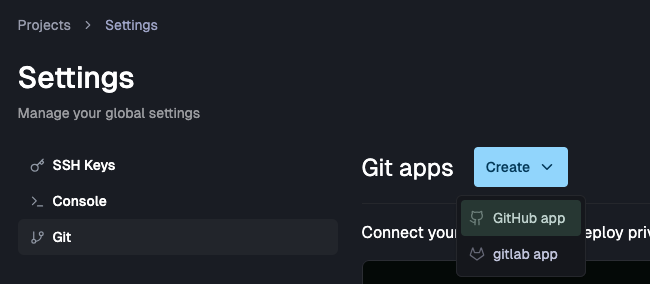
Go to Settings > Git:
-
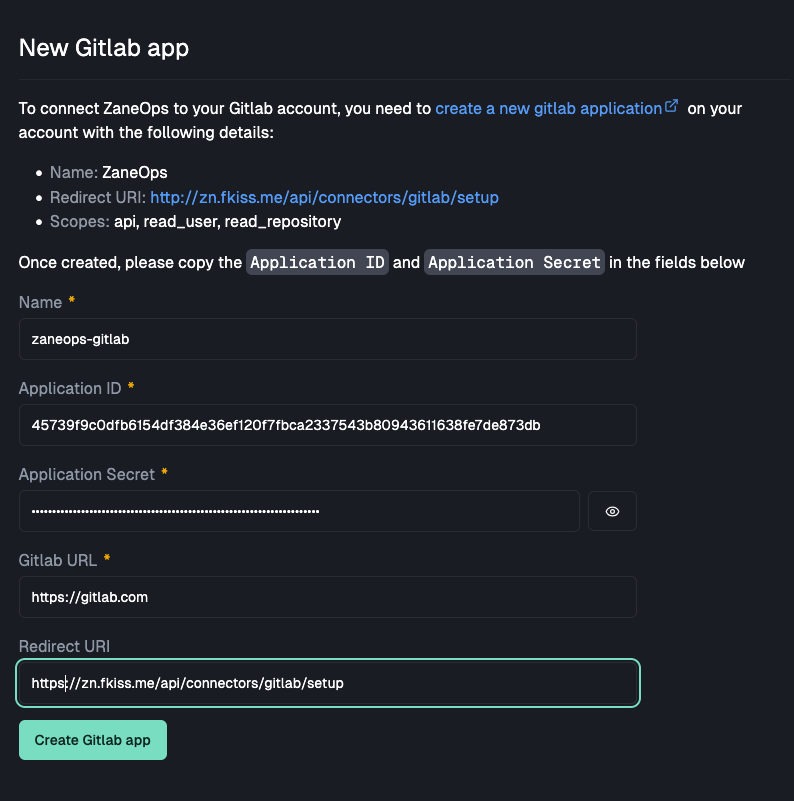
Choose Create GitHub app:
-
To get the credentials for the new app (
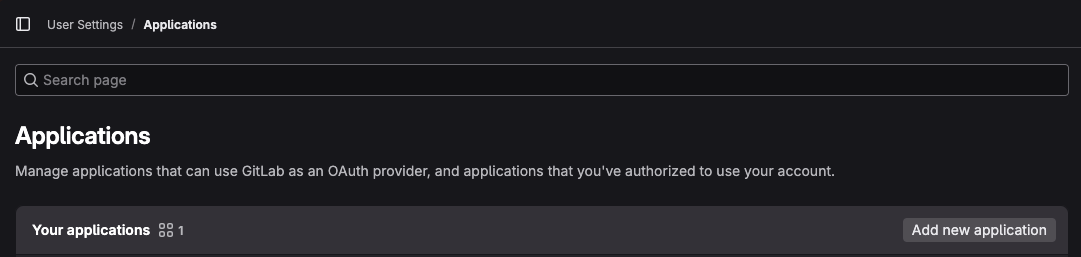
Application IDandApplication Secret) you need to create the app on your Gitlab instance:At https://{your-gitlab-instance}/-/profile/applications click on ** Add new application**:
Create a new application, with the scopes
api,read_userandread_repository, and use the same value for the Redirect URI as in the previous step: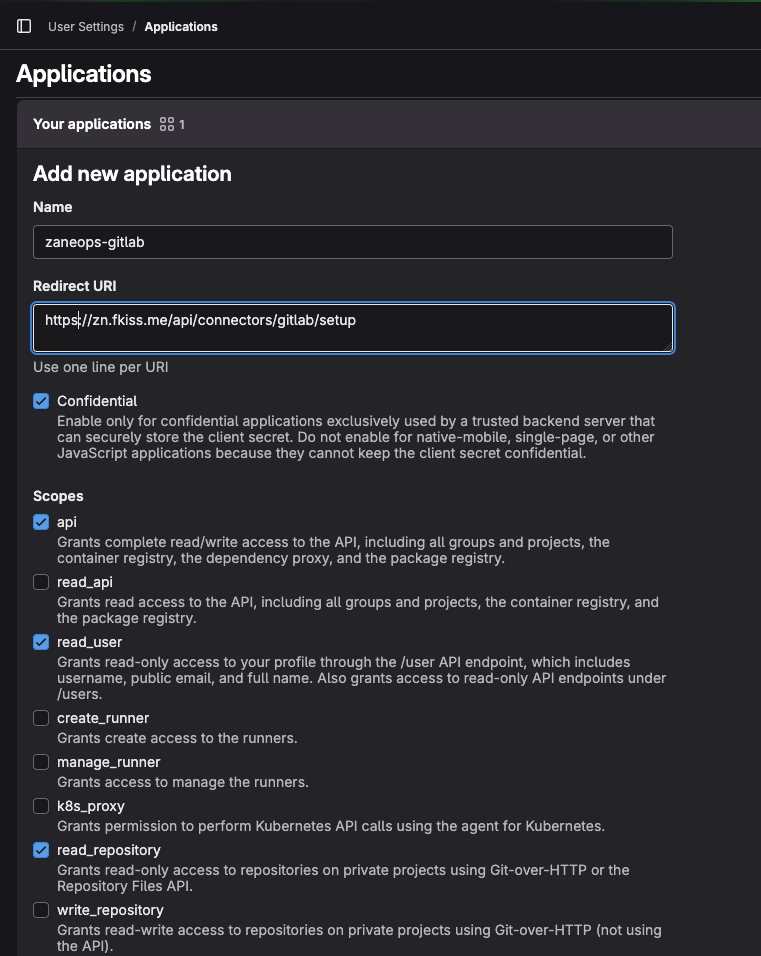
-
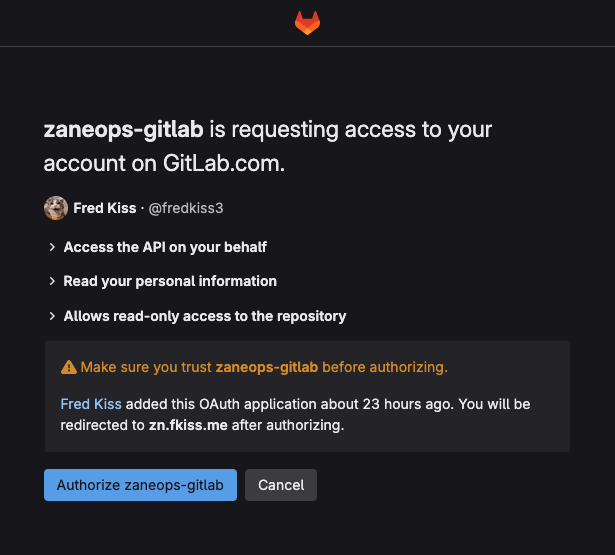
After submitting, you will be redirected to your GitLab instance and asked to authorize the application:
-
Once authorized, you will be redirected back to ZaneOps where you will see the newly created app.
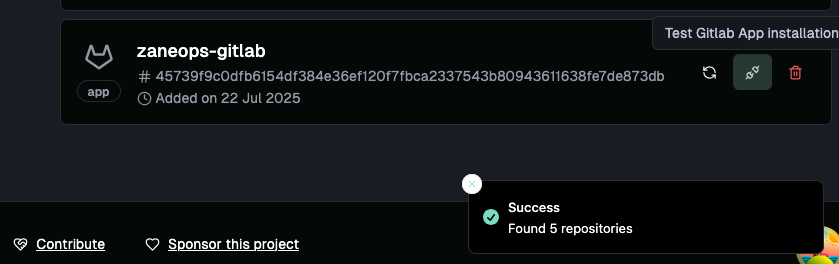
you can test the application installation to make sure it has access to your repositories:
How to deploy a service from a GitLab app
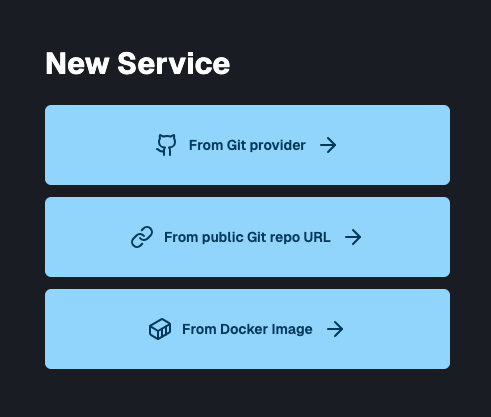
Section titled “How to deploy a service from a GitLab app”- Go to your project > new service and choose Create from Git Provider:
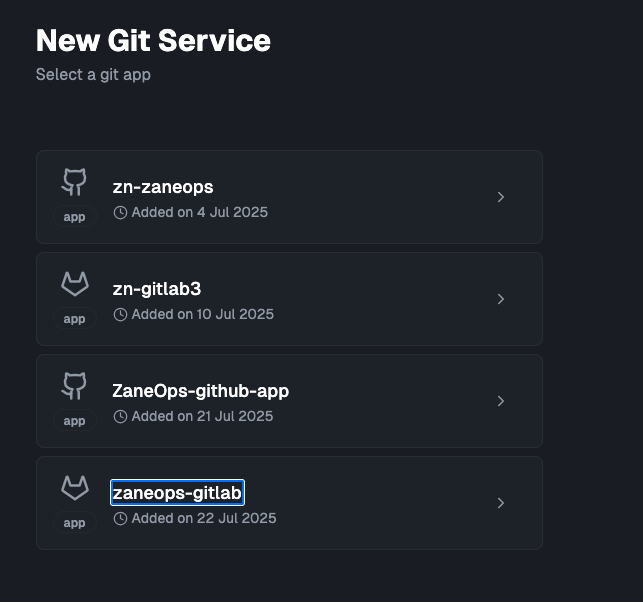
- Choose the newly created GitLab app in the list of available apps:
- There you can select the repository you want to deploy:
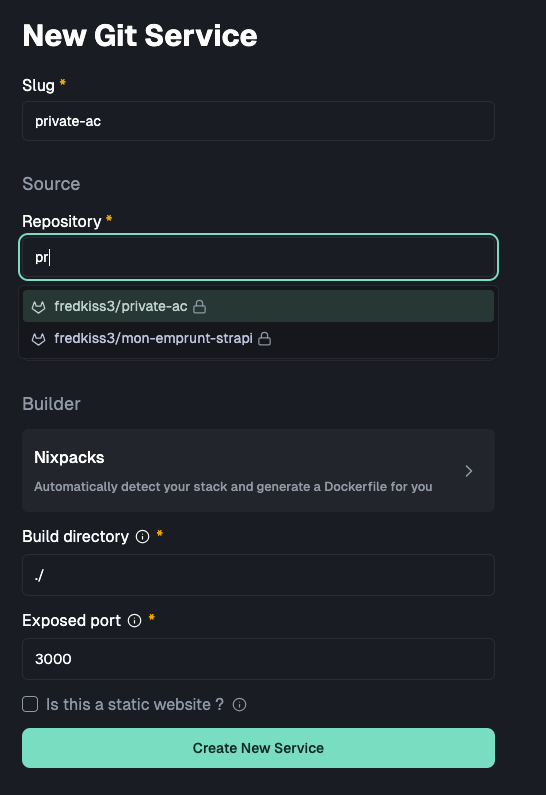
- Once deployed, you will notice in the logs, that your app is cloned using the Gitlab access token, meaning that it worked !
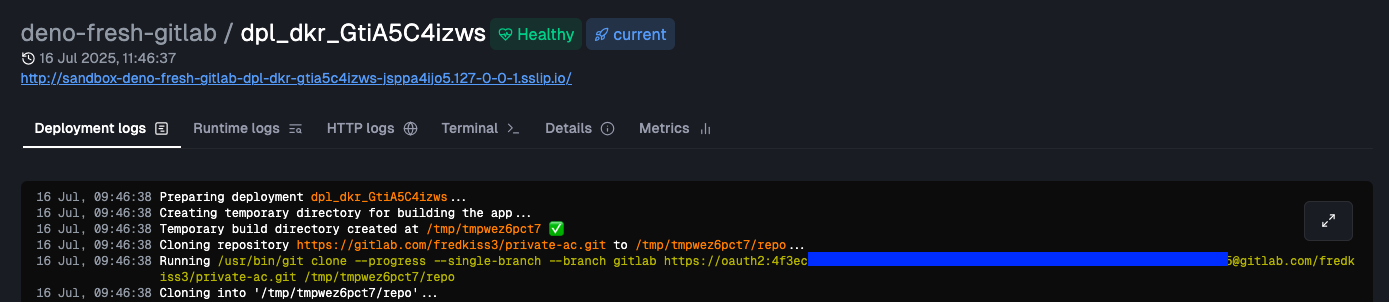
Synchronize New repositories
Section titled “Synchronize New repositories”Newly created repositories are not Synchronized by default with Gitlab apps, instead you need to manually synchronize them from the dashboard:
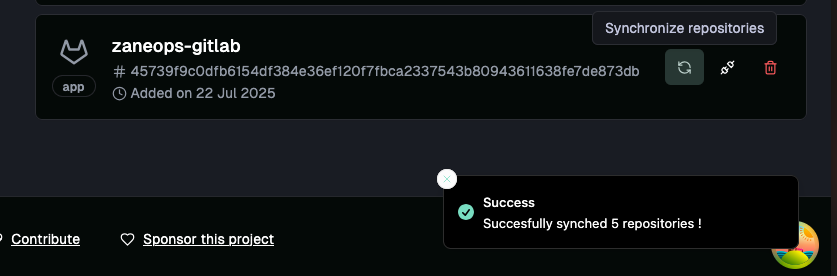
Updating GitLab app
Section titled “Updating GitLab app”If you rotated the secret or updated the redirect URI of your application on your GitLab instance, you can edit the gitlab app and paste in the new credentials:
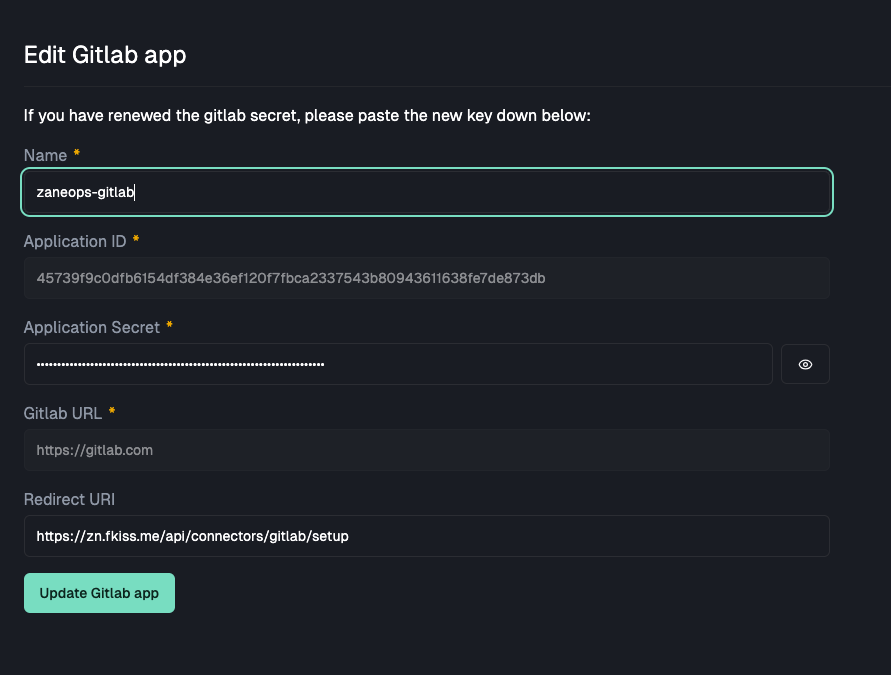
Once done, you will be redirected to your gitlab instance and will need to authorize the app again: