

SSH keys
Introduced in v1.10
To access your server through the ZaneOps web UI, you will need to use SSH keys. Each key is associated with a user on your server.

How to use SSH Keys
Section titled “How to use SSH Keys”-
You can access the SSH keys in the settings.
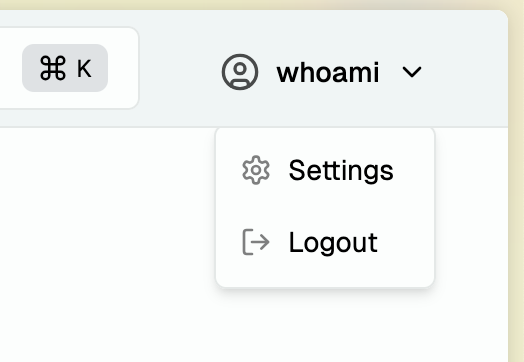
-
Once there, you can create a new key with a valid user on your server and a name for the key.

-
After clicking “Add new Key”, ZaneOps will generate a public/private key pair. You can then use the public key on your server.

-
Next, you will need to add the key to your server in your user directory:
Terminal window # create `~/.ssh` folder if it doesn't existmkdir -p $HOME/.ssh# create `~/.ssh/authorized_keys` file if it doesn't existtouch $HOME/.ssh/authorized_keys# Allow permissions to use `authorized_keys` for authentication with SSHchmod 600 $HOME/.ssh/authorized_keys -
Copy the public SSH key and add it at the end of the file on a new line in
$HOME/.ssh/authorized_keys
-
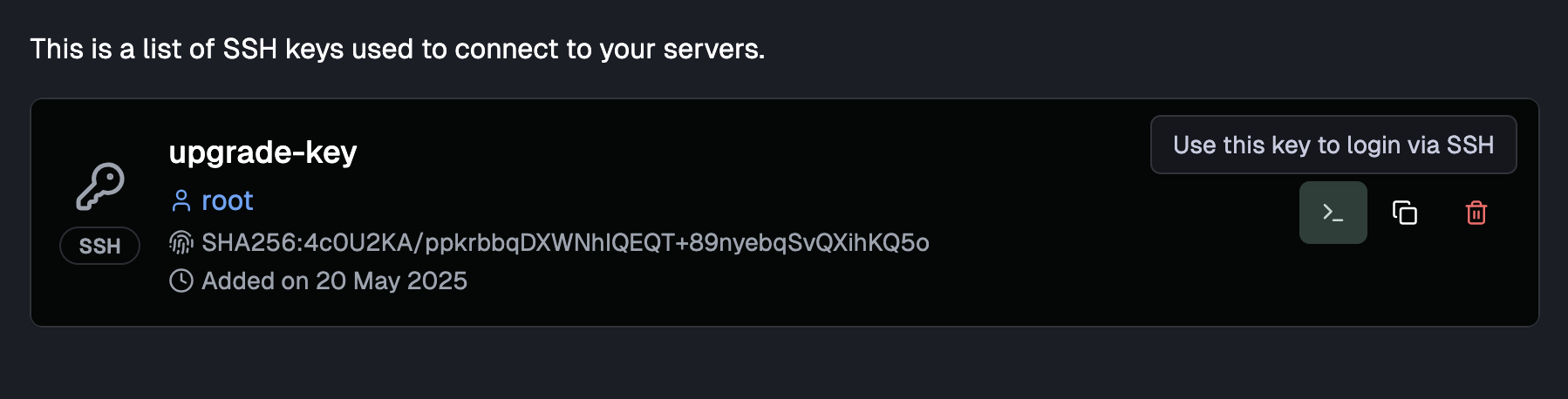
You can now use the key to SSH to your server from ZaneOps:
Troubleshooting
Section titled “Troubleshooting”-
Cannot connect to PORT 22:
Terminal window Failed to connect to port 22: Connection refusedYou will need to modify the SSH port to 22 to have access through the web UI:
/etc/ssh/sshd_config #... other optionsPort 22#... other options -
Public key authentication is disabled:
Terminal window Failed publickey for <username> from 192.168.1.100 port 22 ssh2: RSA SHA256:...You will need to enable it in the SSH configuration:
/etc/ssh/sshd_config PubkeyAuthentication yesAuthorizedKeysFile .ssh/authorized_keys